
Saturday, February 14, 2026
QR Codes on Flyers: Size, Placement & Print Guide
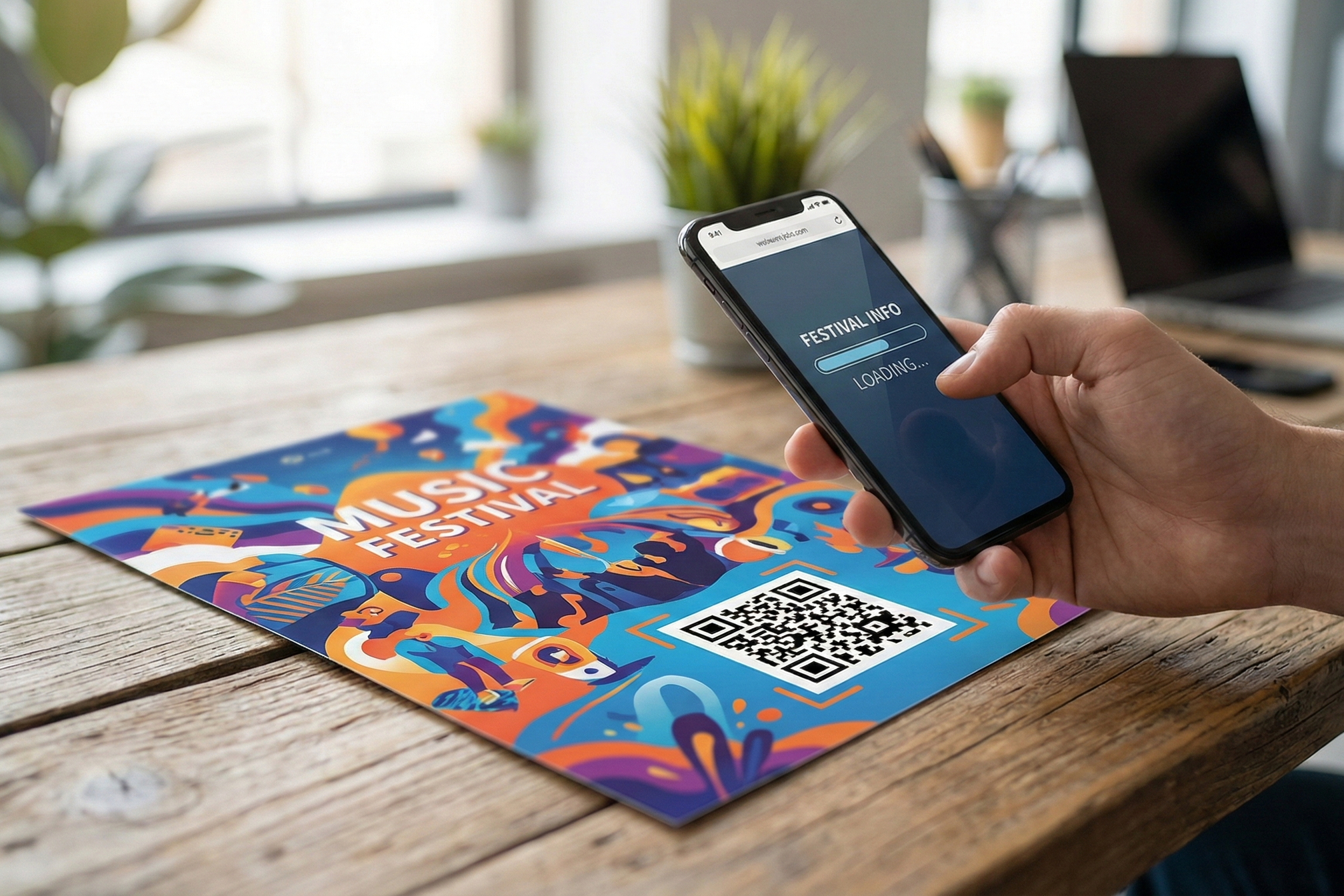
A flyer gets a few seconds of attention, and the QR code is the only part of it you can measure. Getting one to work on paper is a different job from getting one to work on a screen: it has to survive a printer, a trim line, a fold, and a phone camera held at arm's length. This guide covers the print-specific decisions that decide whether yours scans — how big to print it, how much blank space it needs, what to do about CMYK black — and the one choice you cannot undo once the run is boxed: static or dynamic.
Why Add a QR Code to Your Flyer?
Printed flyers are effective for local reach — but on their own they are a dead end. No way to track who took one, no clickable links, no digital follow-through. A QR code bridges that gap. One scan takes readers from paper to any digital destination: your website, a payment page, event registration, an app download, a price list, or a video.
The benefits are immediate:
Measurable. Track exactly how many people scan your flyer and when. No more guessing if your print campaign worked.
Actionable. Convert a physical impression into a digital action, a signup, purchase, RSVP, or donation. Your flyer now closes the sale instead of just introducing it.
Updatable. With a dynamic QR code, change the destination URL without reprinting. Event venue moved? Update the link. Promo expired? Redirect to a new offer.
A QR code transforms your flyer from a passive handout into a trackable, interactive marketing tool. The setup takes minutes, and the ROI is measurable.
Which Type of QR Code Should You Put on a Flyer?
Not all QR codes are the same. The type you choose depends on what you want people to do after they scan. Here's the breakdown:
QR Code Type: URL | Best For: Most flyers—websites, landing pages, event registration | Example Destination: yourbusiness.com/promo
QR Code Type: vCard | Best For: Business cards and networking flyers | Example Destination: Contact info auto-saves to phone
QR Code Type: PDF | Best For: Catalogs, price lists, specification sheets | Example Destination: Download a PDF brochure
QR Code Type: App Store | Best For: App promotion flyers | Example Destination: Link to iOS App Store or Google Play
QR Code Type: Payment | Best For: Donation, tipping, small business payment collection | Example Destination: Venmo, Cash App, PayPal.me
QR Code Type: Wi-Fi | Best For: Venue and event flyers | Example Destination: Auto-connect guests to network
QR Code Type: Social Media | Best For: Brand awareness flyers | Example Destination: Instagram, TikTok, or Facebook profile
For most flyers, a URL QR code is the right choice. It is versatile, works with any destination, and is the easiest to customize with your brand colours.
One bonus: a dynamic URL QR code lets you change the destination link anytime after you've printed the flyers. Miss a typo? Change a landing page? Update an event date? No reprinting needed. (More on dynamic vs. static codes later.)
Use the table above as your decision framework: What action do you want people to take? Match that to the QR code type, and you're set.
How to Add a QR Code to a Flyer (5 Easy Steps)
Adding a QR code to your flyer is straightforward. Follow these five steps, and you'll have a scannable, custom-branded code ready to print.
Step 1: Decide Where Your QR Code Should Send People
Before you create the QR code, know the destination. Examples:
- Your website or a specific landing page
- A payment page (Venmo, Cash App, PayPal)
- Event registration or ticketing form
- A PDF document, price list, or map
- Your social media profile
Write down the full URL or link you want to use. You'll paste this into the QR code generator.
Step 2: Generate Your QR Code
Head to a free QR code generator — our QR code generator works well for this:
- Select your QR code type (URL for most flyers)
- Paste your destination link
- For any flyer you are printing in quantity, choose Dynamic. This lets you edit the destination after printing, and it records scans. Dynamic codes need a free account, and the free plan covers one dynamic code with 100 scans per month across the whole account — read the print-run warning further down before you commit a large run to it.
Your basic QR code is now ready. You can scan it on your phone to verify it works.
Step 3: Customize the Design
This is where you make it match your flyer.
- Colors: Change the QR code to match your brand colors. Just make sure there's strong contrast between the code and the background (dark on light works best).
- Logo or icon: Add your business logo to the center of the QR code. This makes it feel branded, not generic.
- Frame with call-to-action text: Add a frame around the edges with text like "Scan Me," "Learn More," "Pay Here," or "RSVP Now." This tells people what to expect when they scan.
Download your QR code as SVG for print — it is vector, so it stays sharp at any size — or PNG for digital-only flyers. Downloading requires a free account. On the free plan, PNG downloads top out at 1024 px, which covers a 3-inch code at 300 DPI; SVG has no resolution limit at all, which is one more reason to use it for anything going to a printer.
Using Canva? There are two routes, and they are not equivalent. The quick one: in the Canva editor, open Apps → QR Code, paste your URL, and drag the result onto your flyer. It is fast, but the code is static — the destination is baked in, you cannot restyle it much, and you will never know how many people scanned it. The better one for anything you are printing in quantity: generate the code here first, style it to your flyer, download it as SVG or PNG, then drag that file into Canva as an image. Same amount of work, and you keep the ability to redirect it and count the scans. Either way, place it on a white area and leave the blank margin described above — Canva will happily let you crop into it.
Step 4: Place the QR Code on Your Flyer
Position matters. Follow these placement rules:
- Lower-right quadrant is ideal. Readers' eyes naturally track left-to-right, top-to-bottom, landing in the bottom-right area last. Place your QR code there.
- Minimum size: 1" × 1" (2.5 cm) for a flyer held in the hand; 1.5" × 1.5" (3.8 cm) for one posted on a wall. Both measure the code itself — the blank margin around it is extra, and is not optional.
- Keep it away from fold lines and edges. Leave at least 0.25" margin from the edge to prevent trimming damage.
- Avoid busy backgrounds or photos. Place your QR code on white space or a solid color. Patterns and images reduce scannability.
- Include a text instruction: "Scan with your phone camera" or "Tap to learn more." This reduces friction.
Step 5: Test Before Printing
Never print 500 copies without testing first.
- Scan the QR code on at least 3 devices (iPhone, Android, and an older phone if possible)
- Test in different lighting—indoors, outdoors, bright, dim
- Print a test copy. Scanning a screen version is not the same as scanning printed paper. Print one test flyer and verify it scans correctly.
- If you're using a dynamic QR code, verify the redirect works (i.e., clicking through lands on the right page)
Once the test passes, print with confidence.
QR Code Flyer Design: Size, Placement & Scannability Tips
The best QR code is one that people can actually scan. Here's the technical guidance.
Size Guide by Flyer Format
Use this table to choose the right QR code size for your flyer:
Flyer Size: A4 / Letter (8.5×11") | Minimum QR Code Size: 1" × 1" (2.5 cm) | Recommended QR Code Size: 1.5" × 1.5" (3.8 cm)
Flyer Size: Half-page (5.5×8.5") | Minimum QR Code Size: 0.8" × 0.8" (2 cm) | Recommended QR Code Size: 1.2" × 1.2" (3 cm)
Flyer Size: A5 (5.8×8.3") | Minimum QR Code Size: 0.8" × 0.8" (2 cm) | Recommended QR Code Size: 1.2" × 1.2" (3 cm)
Flyer Size: Postcard (4×6") | Minimum QR Code Size: 0.75" × 0.75" (1.9 cm) | Recommended QR Code Size: 1" × 1" (2.5 cm)
The larger the flyer, the larger the QR code should be. A tiny code on a large poster looks lost and discourages scanning.
Placement Best Practices
- Lower-right quadrant is the most natural placement. Readers scan left-to-right, top-to-bottom, and land there last.
- Avoid fold areas. For tri-fold flyers, never place a QR code near a fold—creasing damages the code.
- Leave margins. Keep at least 0.25" from edges. Trimming can slice into the code.
- Choose white space. Never place a QR code over busy photos or detailed backgrounds. Scannability drops dramatically.
The Quiet Zone: The Blank Margin the Standard Requires
This is the most common reason a printed QR code fails, and it is the hardest one to spot on screen — because on screen there is usually blank space around the code anyway. On a flyer, the layout closes in on it.
The QR standard requires a clear margin of four modules — four of the little squares the code is built from — on all four sides. That blank ring is not decoration. It is what the scanner uses to find where the code starts and stops. Crop into it, run a headline or a border up against the code, or drop the code onto a coloured panel that touches its edge, and detection gets slow or fails outright.
In practice, on a flyer-sized code that means budgeting roughly 8–10 mm of blank space on every side, and treating it as part of the code's footprint when you lay out the page. Three things must never intrude into it: text, image edges, and fold lines. If your flyer has a busy or photographic background, place the code on a solid white box that includes the full margin — not one cropped tight to the code, which is the usual mistake.
The margin scales with the code: a bigger code needs a proportionally bigger quiet zone, not a fixed one. Our guide to QR code size and quiet zones works through the module maths if you are designing for a large format.
Color & Contrast Rules
- Dark foreground on light background works best. Black-on-white is the gold standard.
- Judge contrast in greyscale, not in colour. A camera reads brightness, not hue. Two colours that look boldly different on screen — a mid-blue on a mid-green, say — can be nearly the same brightness, and the code becomes unreadable. Convert your pair to greyscale before you trust it: if the two tones look close there, they will fail.
- Avoid inverting colors (light QR on dark background). Older smartphone cameras struggle with this.
- Custom colors are fine, but test them after customizing. Don't assume a trendy color combo will scan.
Print Specifications
- Export at minimum 300 DPI for offset or digital printing. Below that the module edges soften and the code prints muddy. If you are exporting PNG, work backwards from the printed size: a 1.5-inch code at 300 DPI needs 450 px.
- Use SVG format for scalable, resolution-independent output. You can resize it endlessly without losing quality.
- CMYK for professional printing, RGB for digital-only flyers. One trap worth naming: set the dark modules to 100% K only, never a four-colour "rich black". Rich black needs all four plates to register perfectly, and a fraction of a millimetre of misregistration puts coloured fringes on every module edge — which is exactly the detail the decoder is trying to read.
- Matte finish paper scans better than glossy or reflective finishes. If your flyer is glossy, ensure the QR code area is matte.
Size from the scanning distance, not from the page. The working rule is 10:1 — divide the distance the code will be read from by ten to get its minimum width. A 1-inch code is good for about 10 inches, which is where people hold a phone over a handheld flyer. A flyer pinned to a wall and read from 3 feet needs roughly a 3.6-inch code. Our full QR code size guide has the complete chart if your format is not listed above.
Error Correction: How Much Damage the Code Can Survive
QR codes carry redundant data so they still scan when part of the symbol is obscured or damaged. There are four levels: L recovers about 7% of the symbol, M about 15%, Q about 25%, and H about 30%. The redundancy is not free — it is extra data, so a higher level packs more modules into the same physical square, making each one smaller and harder for a camera to resolve.
For flyers, M is the right default. Move up to H in two situations: when you are placing a logo in the centre of the code, since the logo is deliberately destroying part of the symbol and the redundancy is what covers for it; and when the flyer will live outdoors, where rain, sun and scuffing do the same thing accidentally. Do not reach for H by reflex on a small handheld flyer — at 1 inch, the added density can cost you more scans than the redundancy saves.
7 Smart Ways to Use a QR Code on a Flyer
QR codes unlock new possibilities for different flyer types. Here are the most effective use cases.
1. Event Flyers
Link to event registration, ticketing, or an event schedule. Use a dynamic QR code—if your venue changes or time shifts, update the link without reprinting.
Example: Concert flyer → QR code links to Eventbrite registration + full lineup schedule.
2. Donation & Fundraising Flyers
Direct donors to your GoFundMe, nonprofit donation form, or PayPal.me link. Especially powerful for churches, schools, NGOs, and community organizations. A QR code removes friction, no typing a website URL by hand.
Example: School fundraiser flyer → QR code links to donation page with real-time goal tracker.
3. Business Marketing Flyers
Link to a product page, special offer landing page, or lead capture form. Track which physical distribution locations generate the most scans.
Example: Restaurant grand-opening flyer → QR code links to a "20% off coupon" landing page with a unique UTM parameter so you know which flyer drove the visit.
4. Real Estate Flyers
Link to virtual property tours, listing details, or a vCard QR code with agent contact info. This is huge in real estate, buyers can take a virtual tour right from the flyer.
Example: Open house flyer → QR code links to a Matterport 3D tour + agent's phone number.
For a deep dive, see our guide on QR codes for real estate.
5. Restaurant & Takeout Flyers
Link to your online ordering page, a digital list of what you serve, or a reservation system. Ideal for takeout and delivery flyers, where the whole point is to shorten the gap between reading and ordering.
Example: Takeout flyer → QR code links straight to your online ordering platform, so the order starts on the phone instead of on the phone line.
6. Job Recruitment Flyers
Link to your job listing, application form, or careers page. Track scan rates by location to optimize where you post flyers.
Example: "We're Hiring" poster at a university → QR code links directly to the application portal.
7. Community & Government Flyers
Link to public information, surveys, feedback forms, or emergency resources.
Example: City council meeting notice → QR code links to the meeting agenda + Zoom link for remote attendees.
Each of these use cases turns a one-way flyer into a two-way engagement tool. The QR code is your bridge from paper to action.
How Many QR Codes Should You Put on One Flyer?
One. Almost always one — and the reason is mechanical, not aesthetic.
A phone camera decodes whatever is in frame. Put two codes an inch apart and the camera has to pick one, so it either opens the wrong destination or sits there hesitating while the reader loses interest. Both outcomes cost you the scan, and the second one is worse because the reader blames your flyer rather than their phone. Each code also needs its own blank margin, so two codes consume considerably more than twice the space of one.
There is a deeper problem too. Two codes means two calls to action, and a flyer that asks for two things usually gets neither. If you are reaching for a second code, the real question is which of the two actions you actually want.
If you genuinely need more than one — a ticket link and a directions link, say — then:
- Separate them properly. Put them in different regions of the flyer — opposite corners, different columns, different panels — so a phone held at normal reading distance frames only one at a time.
- Label each one. An unlabelled code next to another unlabelled code is a coin flip. "Buy tickets" and "Get directions" underneath the respective codes removes the guesswork entirely.
- Size them equally and give each the full blank margin. A smaller secondary code reads as an afterthought and scans like one.
- Consider one code to a landing page with two buttons. This is usually the better design. It keeps the flyer clean, and it gives you one clean scan number to measure instead of two muddy ones that you cannot compare.
The exception is a tri-fold or multi-panel flyer. One code per panel is reasonable there, because the panels are never in frame together — the fold does the separating for you.
QR Codes on Digital Flyers: When They Help and When They Don't
A digital flyer is the same design delivered as an image or PDF — an email attachment, a social post, a WhatsApp forward, a slide on a screen in a lobby. QR codes still earn their place there, but for a different reason than on paper, and they fail in a different way.
Why they work: a digital flyer is often seen on one device and acted on from another. A code on a flyer shown on a conference screen, a display in a reception area, or a desktop email lets someone move the offer to the phone in their pocket in a single motion, with nothing typed and nothing forgotten. That handoff is the whole value.
Where they fail: if the flyer is being viewed on the same phone that would scan it, the code is a dead end — nobody can point a camera at their own screen. Since most social and messaging traffic is mobile, that is the majority case. Always pair the code with a tappable link in the same design or in the accompanying post, so a phone viewer has something to tap and a screen viewer has something to scan.
One technical trap: everything about contrast and quiet zone still applies, and image compression is unforgiving. Messaging apps and social platforms re-compress what you upload, and a small, soft code does not survive the trip. Export the digital version at a generous pixel size and keep the code physically large in the layout — far larger, proportionally, than you would print it.
How to Put a Cash App or Venmo QR Code on a Flyer
Payment QR codes on flyers are gaining traction—and for good reason. Let donors, customers, or event attendees pay you instantly without fumbling for cash or asking for your account info.
Cash App QR Code on Flyers (4 Steps)
- Open Cash App on your phone → Tap your profile icon (top right).
- Your personal Cash App QR code appears. You can take a screenshot, or tap "Copy $Cashtag Link" to get your direct link (format: cash.app/$yourtag).
- For a branded, trackable version: Go to UseQRKit → Paste your cash.app/$yourtag link → Customize with your flyer's colors and add frame text like "Pay Here" or "Tips Appreciated."
- Download as SVG and place on your flyer at minimum 1" × 1".
Why use UseQRKit instead of the native screenshot? You can match the code to your flyer's colours, and a dynamic code lets you swap the payment link later and see how many people scanned. The native Cash App code is static: it cannot be restyled, redirected, or counted. If you expect a busy event, check the free plan's 100-scans-a-month cap first — a payment code that stops redirecting mid-event is worse than no tracking at all.
Use cases: Tipping jars at events, small business payment collection, street performers, farmers markets, food truck counters, donation collection.
Venmo QR Code on Flyers (4 Steps)
- Open Venmo → Tap the "Scan" icon at the top of the home screen.
- Your personal Venmo QR code displays. Screenshot it, or copy your profile link (venmo.com/u/yourusername).
- For design customization: Go to UseQRKit → Paste your venmo.com/u/yourusername link → Add your brand colors and a "Venmo Me" frame.
- Download and add to your flyer design at minimum 1" × 1".
Use cases: Group event payments (split the dinner bill via flyer), donation collection, freelancer service payments, nonprofit fundraising.
PayPal.me, Zelle & Other Payment Platforms
- PayPal.me links: Work great as URL QR codes. You can even pre-fill an amount: paypal.me/yourname/25 pre-sets a $25 request.
- Zelle: Doesn't have native QR codes. Create a URL QR code linking to a simple instructions page with your Zelle email or phone number.
- Apple Pay / Google Pay: Not currently QR-code-native, but you can link to a payment page that supports both (like Stripe or Square).
Pro tip: at an event, a dynamic code beats the app's native code — you can track scan counts and switch the payment destination later without reprinting. One caveat that matters most for payments: on the free plan, scans past 100 in a month stop redirecting. For anything where a failed scan is a lost sale, put it on a paid plan or point a static code at a short page you control.
How to Track QR Code Scans on Your Flyers
Flyer marketing is traditionally unmeasurable—"spray and pray" with no data. QR codes change that. You can now measure the ROI of your print campaign with precision.
What You Can Track
If you use a dynamic QR code from UseQRKit, you'll see:
- Total scans and unique scans — every scan, plus a de-duplicated count that treats repeat scans from the same device on the same day as one. The gap between the two tells you how many people came back.
- Scan location — Which cities or countries scanned most?
- Device type — iOS or Android? This helps you understand your audience.
- Time of day / day of week patterns — When do people scan? (Evenings? Weekends? This tells you when your flyer reaches people.)
- Referral source — If using UTM parameters, see which traffic source drove the scan.
How to Set Up Tracking
Tracking is automatic for dynamic QR codes — there is no extra setup. Free accounts keep 30 days of scan history; paid plans keep it far longer, which matters if you want to compare this campaign against last spring's.
For deeper analytics integration:
- Append UTM parameters to your destination URL before generating the QR code.
- Example: yourdomain.com/promo?utm_source=flyer&utm_medium=print&utm_campaign=spring2026
- Generate the QR code with that full URL.
- View scan data in your UseQRKit dashboard AND in Google Analytics.
A/B Testing with QR Codes
This is unique to QR codes—you can't A/B test a printed phone number or website URL.
Here's how:
- Print two versions of your flyer with different QR codes (each linking to a different UTM-tagged URL).
- Distribute version A in one location (coffee shop, trade show) and version B in another.
- Compare scan rates and destination page conversions in your dashboard.
Example: Version A's headline is "Save 20% on Memberships" and version B's is "Join Our VIP Program." Which flyer generates more scans? The data tells you which message resonates.
Dynamic vs Static QR Codes: Which Is Better for Flyers?
This is the critical decision for print marketing. Here's the comparison:
Feature: Edit destination URL after printing | Static QR Code: ❌ No — must reprint | Dynamic QR Code: ✅ Yes — change anytime
Feature: Scan tracking & analytics | Static QR Code: ❌ No | Dynamic QR Code: ✅ Yes — counts, location, device
Feature: Shorter URL encoding | Static QR Code: ❌ Long URLs = denser, harder-to-scan code | Dynamic QR Code: ✅ Short redirect URL = simpler code
Feature: A/B testing campaigns | Static QR Code: ❌ Not possible | Dynamic QR Code: ✅ Change destination mid-campaign
Feature: Cost | Static QR Code: Free, with unlimited scans forever | Dynamic QR Code: Free plan covers 1 code and 100 scans/month across the account; paid plans start at $6/month billed yearly and remove both limits
Feature: Best for | Static QR Code: One-time/personal use | Dynamic QR Code: Business, marketing, events
The bottom line: for any flyer printed in quantity (50+ copies), a dynamic QR code is worth it. Being able to fix a broken link, update an expired promotion, or redirect to a new page after the flyers are already out is worth far more than the code itself. Just match the plan to the campaign before you print — which is the next section, and the part people get wrong.
Before You Print: The Scan Cap on a Run You Can't Recall
This is the one thing to get right before the job goes to the printer, and it is specific to dynamic codes.
A dynamic code works by redirecting through our servers, and that redirect is the thing every plan meters. On the UseQRKit free plan you get one dynamic code and 100 scans per month across the whole account. Scan 101 in a given month does not redirect — the person holding your flyer taps and gets nothing — and it stays that way until the monthly counter resets. Every other provider meters dynamic codes somehow too; the numbers differ, so check whoever you use.
On a web page you would notice that and fix it in a minute. On 500 printed flyers you cannot. The codes are already in people's hands, on noticeboards, under windscreen wipers, and there is no way to recall them. The cruel part is the shape of the failure: the campaign that hits the cap is the campaign that worked. You do not lose the scans that did not matter, you lose the ones that came after your flyer started performing.
So choose by expected scans, not by copies printed:
- Under 100 scans a month, one code: the free plan is genuinely fine. A community noticeboard flyer, a small event, a shop window.
- More than that, or more than one design in circulation: move to a paid plan before you print, not after the cap bites. Paid plans start at $6/month billed yearly and remove the scan cap entirely — which is almost certainly less than the printing cost you are already committing.
- Unsure, and cannot risk a dead code: use a static code pointing at a short URL you control, like yoursite.com/flyer. You give up per-scan analytics from us, but a static code can never be throttled or expire, and you keep most of the flexibility — you can still change what that page shows, and your own server logs will tell you roughly how many people arrived.
That last option is the one people overlook. "Static" does not mean the destination is frozen — it means the code points at a URL instead of a redirect. If you own the URL, you own the flexibility, and nothing sits between your flyer and your reader.
Learn more about dynamic QR codes and how they work. And if you want a detailed comparison, check out our guide on static vs dynamic QR codes.
Frequently Asked Questions About QR Codes on Flyers
FAQ #1: What is a QR code flyer?
A QR code flyer is any printed flyer that includes a scannable QR code linking to a digital destination — a website, payment page, event registration, price list, video, or app download. Adding a QR code turns a passive handout into a trackable, interactive marketing tool that bridges offline print and online action.
FAQ #2: How do I add a QR code to a flyer?
Generate a QR code with a free tool like UseQRKit, download it as SVG or PNG with a free account, and place it on your flyer design in Canva, Adobe Illustrator, or Microsoft Word. Position it in the lower-right area at minimum 1" × 1", leave a clear blank margin all the way around it, and add an instruction like "Scan Me." See the step-by-step guide above for full details.
FAQ #3: Can I make a QR code flyer template for free?
Yes. Generate the QR code, then drop it into any free flyer template in Canva, Word or Google Docs. Building and customizing the code is free and needs no account; downloading the file needs a free account. For full design control, download SVG and import it into your design tool — it is vector, so it scales to any flyer size without going blurry.
FAQ #4: Where should I put the QR code on my flyer?
The lower-right quadrant is most natural—readers' eyes follow an F-pattern (left-to-right, top-to-bottom) and land there last. Keep the QR code away from fold lines and edges, with at least 0.25" margin to prevent trimming damage.
FAQ #5: What should a flyer with a QR code link to?
Common destinations: your website or landing page, an event registration form, a payment page (Venmo, Cash App, PayPal.me), a digital price list, a PDF brochure, or a social media profile. Choose based on the flyer's goal and the single action you want from the reader.
FAQ #6: How do I create a QR code for an event flyer?
Create a dynamic URL QR code with UseQRKit that links to your event registration page or ticketing platform (Eventbrite, Luma, etc.). A dynamic code lets you update event details—like a venue change—without reprinting. Add a frame with "RSVP Now" or "Get Tickets" to prompt action.
FAQ #7: How big should a QR code be on a flyer?
Minimum 1" × 1" (2.5 cm) for handheld flyers. For posted flyers or larger formats, use 1.5"+ for reliable scanning from a distance. Always test a printed copy before your full print run.
FAQ #8: How do I put my Cash App QR code on a flyer?
Screenshot your Cash App QR code from the app, or create a branded version with UseQRKit using your cash.app/$cashtag link. The UseQRKit version gives you scan tracking and color customization that the native code doesn't offer—plus you can change where it directs payment if needed.
FAQ #9: Should I use a dynamic or static QR code on a flyer?
For any flyer printed in quantity, dynamic is the better default — you can fix the link if something changes. But size the plan to the campaign first: the free plan covers one dynamic code and 100 scans a month across the account, and scans past that stop redirecting until the month resets. If you cannot risk that on a run you cannot recall, either move to a paid plan before printing or use a static code pointing at a URL you control.
FAQ #10: Can I track how many people scan my flyer's QR code?
Yes — a dynamic QR code records every scan, and the dashboard shows total and unique scans, device type, location and time-of-day patterns. Two limits to know on the free plan: scan history is kept for 30 days, and the account is capped at 100 scans per month, after which the code stops redirecting until the counter resets. Paid plans lift both.
FAQ #11: How many QR codes are too many on a flyer?
More than one is usually too many. Two codes close together force the camera to choose, so it opens the wrong one or stalls, and each code needs its own blank margin, so a pair eats more than twice the space of a single code. Two codes also means two calls to action, and a flyer that asks for two things often gets neither. If you must use two, place them in different regions of the flyer and label each one. On a tri-fold or multi-panel flyer, one per panel is fine, because the panels are never in frame at the same time.
FAQ #12: Why do people put QR codes on digital flyers?
Because the flyer and the action often happen on different screens. A code on a flyer shown on a lobby display, in a desktop email, or in a slide deck lets someone move the offer to their phone without typing a URL or trying to remember it later. The exception is a viewer already on a phone — they cannot scan their own screen — so a digital flyer should always carry a tappable link alongside the code.
FAQ #13: Do I need a quiet zone around a QR code on a flyer?
Yes. The standard requires a blank margin of four modules on all four sides — roughly 8–10 mm on a flyer-sized code. That margin is what lets the scanner find the code's boundary, so it is functional, not cosmetic. Text, borders, image edges or fold lines that intrude into it are one of the most common causes of a printed code that will not scan, and the problem is invisible until the flyer comes off the press.
FAQ #14: Is it legal to put a QR code on a flyer or a billboard?
The code itself is not the issue. The QR standard is open, and Denso Wave, which invented it, does not charge for using it commercially — there is no licence to buy and no royalty to pay. What is regulated is everything around it: you need permission to post flyers on private property and on many public surfaces, outdoor advertising and billboards fall under local planning and highway-safety rules in most places, and if the page behind the code collects personal data it has to say so. Check the rules for the surface you are posting on, not for the code.
FAQ #15: What if my QR code stops working after I've printed the flyers?
If it is a dynamic code, log in and repoint it — that is the whole reason to use one, and the printed flyers keep working. If it is a static code, the code cannot be changed, but the page it points to can: if you own that URL, put a redirect or an updated page there. This is why pointing a static code at a URL you control beats pointing it at a third-party link you don't. The case you cannot fix is a static code aimed at someone else's URL that later dies — which is worth thinking about before you print, not after.
Ready to Create Your QR Code Flyer?
Stop guessing whether your flyers work. Build your QR code free, customize it to match your design, and download SVG for print with a free account. Then do the one step most people skip: print a single test copy and scan it before you commit to the run.
Your first flyer campaign starts in about a minute. Create your QR code.